My zsh Shell setup
The following steps setup my shell (zsh + oh-my-zsh).
- Install
ghosttyterminal - Install
zsh - Install
oh-my-zsh - Install
starship.rs - Setup starship theme
- https://starship.rs/presets/tokyo-night
starship preset tokyo-night -o ~/.config/starship.toml
The dotfiles below are sanitized examples. Never commit real tokens, passwords, or API keys to a shell profile - they end up in your shell history, backups, and any synced dotfiles repo. Load secrets from an untracked file instead (see Managing secrets at the end of this page).
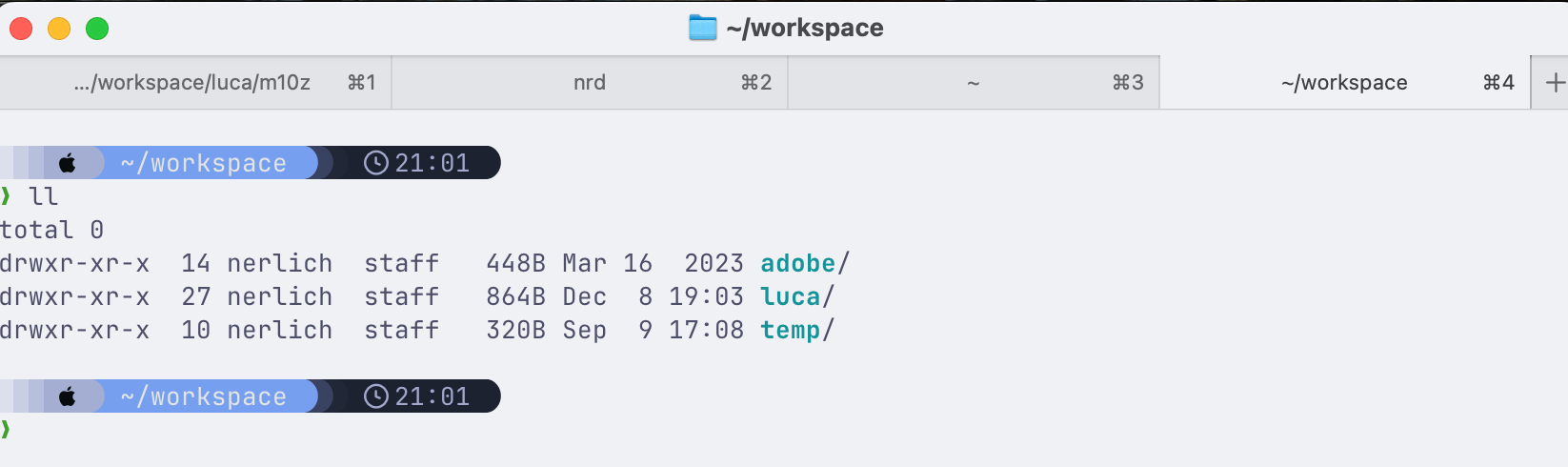
Example terminal tab in my home directory
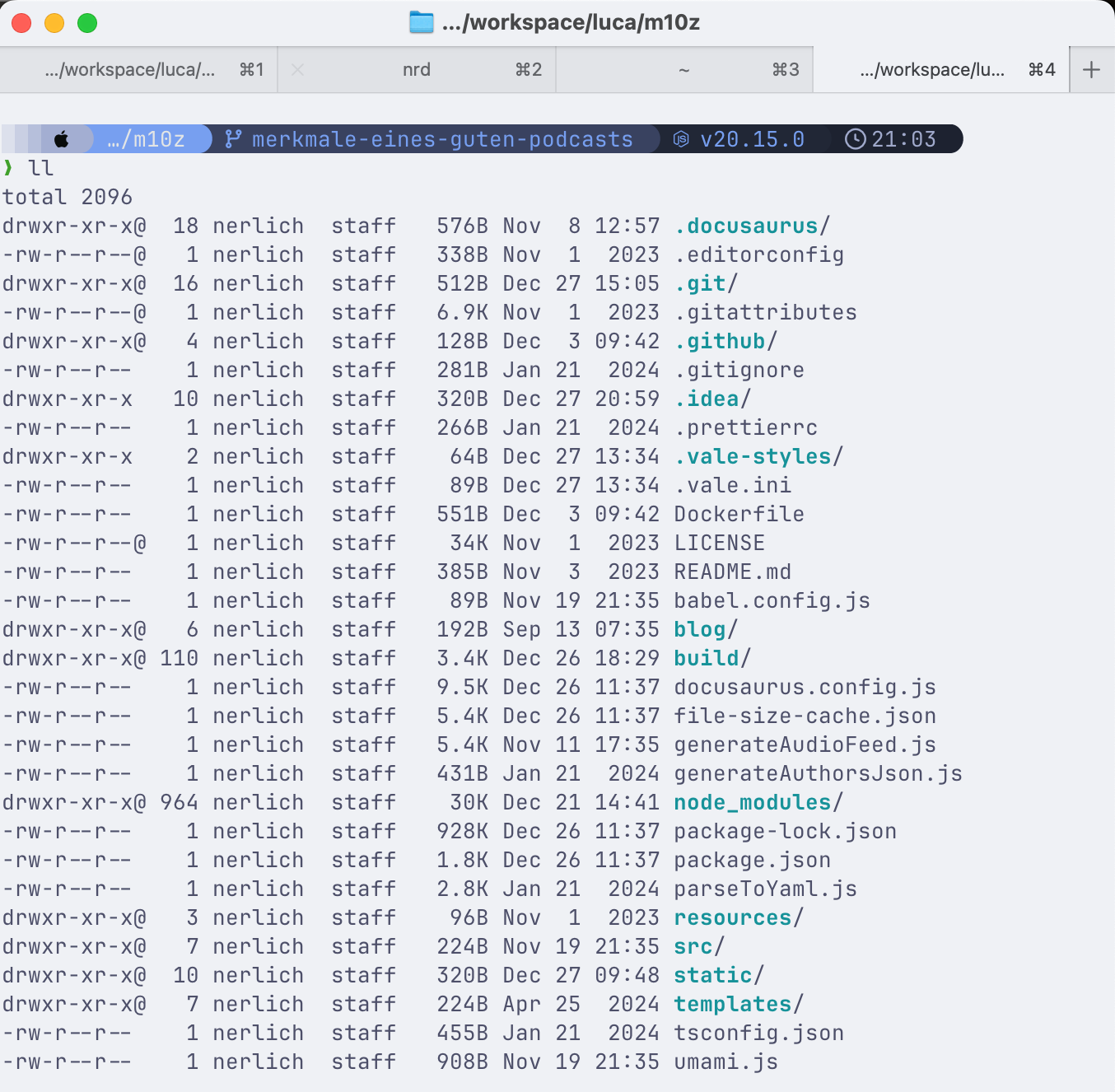
Example terminal tab in a folder with a node project
When using ssh to connect to remote servers, they might be missing the shell info for Ghostty. You can copy them with the following command
infocmp -x | ssh YOUR-SERVER -- tic -x -
Ghostty Config
# Create window splits
keybind = alt+a=new_split:left
keybind = alt+s=new_split:down
keybind = alt+w=new_split:up
keybind = alt+d=new_split:right
keybind = alt+e=new_split:auto

# Navigate window splits
keybind = alt+shift+a=goto_split:left
keybind = alt+shift+s=goto_split:bottom
keybind = alt+shift+w=goto_split:top
keybind = alt+shift+d=goto_split:right

# Other
mouse-hide-while-typing = true
keybind = cmd+w=close_surface
keybind = performable:ctrl+c=copy_to_clipboard

# Custom Icon Colors
macos-icon = custom-style
macos-icon-frame = plastic
macos-icon-ghost-color = 1C2021
macos-icon-screen-color = FA0C00

# Cursor
shell-integration-features = no-cursor
cursor-style = block
cursor-style-blink = false

# Tab Style
macos-titlebar-style = tabs
macos-titlebar-proxy-icon = hidden
split-divider-color = #222
unfocused-split-opacity = 1

.zshrc
# If you come from bash you might have to change your $PATH.
# export PATH=$HOME/bin:$HOME/.local/bin:/usr/local/bin:$PATH

# Path to your Oh My Zsh installation.
export ZSH="$HOME/.oh-my-zsh"

# Set name of the theme to load --- if set to "random", it will
# load a random theme each time Oh My Zsh is loaded, in which case,
# to know which specific one was loaded, run: echo $RANDOM_THEME
# See https://github.com/ohmyzsh/ohmyzsh/wiki/Themes
ZSH_THEME="robbyrussell"

# Set list of themes to pick from when loading at random
# Setting this variable when ZSH_THEME=random will cause zsh to load
# a theme from this variable instead of looking in $ZSH/themes/
# If set to an empty array, this variable will have no effect.
# ZSH_THEME_RANDOM_CANDIDATES=( "robbyrussell" "agnoster" )

# Uncomment the following line to use case-sensitive completion.
# CASE_SENSITIVE="true"

# Uncomment the following line to use hyphen-insensitive completion.
# Case-sensitive completion must be off. _ and - will be interchangeable.
# HYPHEN_INSENSITIVE="true"

# Uncomment one of the following lines to change the auto-update behavior
# zstyle ':omz:update' mode disabled  # disable automatic updates
# zstyle ':omz:update' mode auto      # update automatically without asking
# zstyle ':omz:update' mode reminder  # just remind me to update when it's time

# Uncomment the following line to change how often to auto-update (in days).
# zstyle ':omz:update' frequency 13

# Uncomment the following line if pasting URLs and other text is messed up.
# DISABLE_MAGIC_FUNCTIONS="true"

# Uncomment the following line to disable colors in ls.
# DISABLE_LS_COLORS="true"

# Uncomment the following line to disable auto-setting terminal title.
# DISABLE_AUTO_TITLE="true"

# Uncomment the following line to enable command auto-correction.
ENABLE_CORRECTION="true"

# Uncomment the following line to display red dots whilst waiting for completion.
# You can also set it to another string to have that shown instead of the default red dots.
# e.g. COMPLETION_WAITING_DOTS="%F{yellow}waiting...%f"
# Caution: this setting can cause issues with multiline prompts in zsh < 5.7.1 (see #5765)
COMPLETION_WAITING_DOTS="true"

# Uncomment the following line if you want to disable marking untracked files
# under VCS as dirty. This makes repository status check for large repositories
# much, much faster.
# DISABLE_UNTRACKED_FILES_DIRTY="true"

# Uncomment the following line if you want to change the command execution time
# stamp shown in the history command output.
# You can set one of the optional three formats:
# "mm/dd/yyyy"|"dd.mm.yyyy"|"yyyy-mm-dd"
# or set a custom format using the strftime function format specifications,
# see 'man strftime' for details.
# HIST_STAMPS="mm/dd/yyyy"

# Would you like to use another custom folder than $ZSH/custom?
# ZSH_CUSTOM=/path/to/new-custom-folder

# Which plugins would you like to load?
# Standard plugins can be found in $ZSH/plugins/
# Custom plugins may be added to $ZSH_CUSTOM/plugins/
# Example format: plugins=(rails git textmate ruby lighthouse)
# Add wisely, as too many plugins slow down shell startup.
plugins=(
  git
)

source $ZSH/oh-my-zsh.sh

# User configuration

# export MANPATH="/usr/local/man:$MANPATH"

# You may need to manually set your language environment
# export LANG=en_US.UTF-8

# Preferred editor for local and remote sessions
# if [[ -n $SSH_CONNECTION ]]; then
#   export EDITOR='vim'
# else
#   export EDITOR='nvim'
# fi

# Compilation flags
# export ARCHFLAGS="-arch $(uname -m)"

# Set personal aliases, overriding those provided by Oh My Zsh libs,
# plugins, and themes. Aliases can be placed here, though Oh My Zsh
# users are encouraged to define aliases within a top-level file in
# the $ZSH_CUSTOM folder, with .zsh extension. Examples:
# - $ZSH_CUSTOM/aliases.zsh
# - $ZSH_CUSTOM/macos.zsh
# For a full list of active aliases, run `alias`.
#
# Example aliases
# alias zshconfig="mate ~/.zshrc"
# alias ohmyzsh="mate ~/.oh-my-zsh"

fpath=(~/.local/share/zsh/functions $fpath)
autoload -Uz compinit
compinit

## ZSH Config
PROMPT='%(?.%F{green}√.%F{red}?%?)%f %B%F{240}%~%f%b %# '

## Java 8
#export JAVA_HOME='/Users/nerlich/tech/jdk8u292-b10/Contents/Home'
#export PATH=$JAVA_HOME:$PATH

## mise
# node, java, maven, python etc. are installed and version-pinned by mise
# (see "Local version management" below), e.g.:
#   mise use --global node@22 java@temurin-21 maven
# This replaces the old hand-pinned JAVA_HOME / MAVEN_HOME exports and nvm.

## Ngrok
export PATH="/Users/nerlich/tech/ngrok:$PATH"

## Secrets (tokens, etc.) - loaded from an untracked file, never hardcoded here.
# See "Managing secrets" below. Create ~/.zshrc.local (chmod 600, git-ignored) with:
#   export GITHUB_TOKEN='ghp_...'
#   export GITHUB_ACCESS_TOKEN_CLASSIC='ghp_...'
[ -f "$HOME/.zshrc.local" ] && source "$HOME/.zshrc.local"

# FileSystem
alias ls='ls -GFh'
alias cp='cp -iv'                           # Preferred 'cp' implementation
alias mv='mv -iv'                           # Preferred 'mv' implementation
alias mkdir='mkdir -pv'                     # Preferred 'mkdir' implementation
alias ll='ls -FGlAhp'                       # Preferred 'ls' implementation
alias less='less -FSRXc'                    # Preferred 'less' implementation
cd() { builtin cd "$@"; [[ -o interactive ]] && ll; }   # List dir contents upon 'cd' (interactive shells only)
alias cd2='cd ../../'                       # Go back 2 directory levels
alias cd3='cd ../../../'                     # Go back 3 directory levels
alias cd4='cd ../../../../'                  # Go back 4 directory levels
alias cd5='cd ../../../../../'               # Go back 5 directory levels
alias cd6='cd ../../../../../../'            # Go back 6 directory levels
alias f='open .'

# Docker
alias dcu='docker compose pull && docker compose up -d'
alias dcd='docker compose down'
alias dcl='docker compose logs -f'
alias dcb='docker compose build'

# Git
# Avoid an alias that blindly pulls, stages every file, commits, and pushes. Review the diff and use
# explicit git add / git commit commands so accidental files and unrelated work do not get published.
export gh='/Users/nerlich/tech/gh_2.64.0/bin'
export PATH=$gh:$PATH

# Maven
alias mci='mvn clean install'
alias mcip='mvn clean install -PautoInstallSinglePackage'
alias mcipp='mvn clean install -PautoInstallSinglePackagePublish'
alias mcipst='mvn clean install -PautoInstallSinglePackage -DskipTests'

# Node
alias nrd='npm run dev'
alias nrb='npm run build'
alias nrbs='npm run build && npm run start'

# Networking
alias myip="ifconfig | grep -Eo 'inet (addr:)?([0-9]*\.){3}[0-9]*' | grep -Eo '([0-9]*\.){3}[0-9]*' | grep -v '127.0.0.1'"
alias netCons='lsof -i'                             # netCons:      Show all open TCP/IP sockets
alias lsock='sudo /usr/sbin/lsof -i -P'             # lsock:        Display open sockets
alias lsockU='sudo /usr/sbin/lsof -nP | grep UDP'   # lsockU:       Display only open UDP sockets
alias lsockT='sudo /usr/sbin/lsof -nP | grep TCP'   # lsockT:       Display only open TCP sockets
alias flushdns='sudo dscacheutil -flushcache; sudo killall -HUP mDNSResponder; say DNS cache flushed '

# Adobe AppBuilder
alias aiodev='aio app dev'
alias aiodep='aio app deploy'
alias aiodpl='aio app deploy'
alias aiolog='aio app logs'
alias aiouse='aio app use'
alias aiort='aio rt'
alias aioact='aio rt activation'
alias aioinv='aio rt action invoke'
alias aiores='aio rt activation result'
alias aioll='aio rt activations list -l 60'
alias aiols='aio rt activations list -l 10'
alias aiolst='aio rt activations list -l 10'
alias aiocm='aio cloudmanager'
alias aiorde='aio aem rde'
alias aiolgi='aio login --no-open'
alias aiolgo='aio logout --force'
alias aiocsl='aio console'
alias aioorg='aio console org select'
alias aioprj='aio console project select'
alias aiows='aio console ws select'
alias aiocfg='aio config'
alias aioplg='aio plugins'
alias aioinf='aio info'
alias aioo='aio where'

# mise: loads tools + env vars per directory (replaces nvm, pyenv, sdkman, direnv)
eval "$(mise activate zsh)"

export PATH="$PATH:/Users/nerlich/.local/bin" # Added by Docker Labs Debug Tools"

# Added by LM Studio CLI (lms)
export PATH="$PATH:/Users/nerlich/.cache/lm-studio/bin"

# Starship.rs
# curl -sS https://starship.rs/install.sh | sh
eval "$(starship init zsh)"
powershell .profile
File Location: C:\Users\lucan\Documents\WindowsPowerShell\Microsoft.PowerShell_profile.ps1
# Linux-like aliases for PowerShell
Set-Alias -Name ll -Value Get-ChildItem
function ll { Get-ChildItem -Force @args | Format-Table -AutoSize }
function ls { Get-ChildItem @args }
function grep { Select-String @args }
function pwd { (Get-Location).Path }
function touch { New-Item -ItemType File @args }
function cp { Copy-Item @args }
function mv { Move-Item @args }
function rm { Remove-Item @args }
function cat { Get-Content @args }
function clear { Clear-Host }
function mkdir { New-Item -ItemType Directory @args }
function man { Get-Help @args }
function find { Get-ChildItem -Recurse -Filter @args }
function diff { Compare-Object @args }
function history { Get-History }

Write-Host "Linux-like aliases loaded!" -ForegroundColor Green

#region Environment path additions
$env:PATH = "$env:ConEmuBaseDir\Scripts;$env:PATH"
$env:PATH = "C:\Users\Luca\WPy64-3910\python-3.9.1.amd64;$env:PATH"
#endregion

#region Directory navigation aliases
function cd2 { Set-Location -Path ..\.. }
function cd3 { Set-Location -Path ..\..\.. }
function cd4 { Set-Location -Path ..\..\..\.. }
function f { Start-Process . }
#endregion

#region Project directory shortcuts
function cdi { Set-Location -Path "E:\workspace\luca\" }
function cds { Set-Location -Path "E:\workspace\luca\code\projects\strapi\cffc-v4\" }
function cdc { Set-Location -Path "E:\workspace\luca\code\projects\cffc\" }
function cdc4ca { Set-Location -Path "E:\workspace\adobe\VW\author-c4c\crx-quickstart\bin\" }
function cdc4cp { Set-Location -Path "E:\workspace\adobe\VW\publish-c4c\crx-quickstart\bin\" }
#endregion

#region NPM aliases
function npmil { npm install --legacy-peer-deps }
function nrd { npm run dev }
function nrb { npm run build }
function nrs { npm run start }
function nrbs { npm run build; npm run start }
function npmu { npm update }
function npmi { npm install }
#endregion

#region Maven aliases
function mci { mvn clean install -T 1C }
function mcip { mvn clean install -PautoInstallSinglePackage }
function mcipst { mvn clean install -PautoInstallSinglePackage -DskipTests }
function mcipp { mvn clean install -PautoInstallSinglePackagePublish }
function mcib { mvn clean install -PautoInstallBundle }
function msonar { mvn clean verify sonar:sonar -Dsonar.projectKey=R4C -Dsonar.host.url=http://localhost:9000 -Dsonar.token=$env:SONAR_TOKEN }
#endregion

#region Docker aliases
function dcu { docker compose pull; docker compose up -d --remove-orphans }
function dcul { docker compose -f docker-compose-local.yml build; docker compose -f docker-compose-local.yml up }
function dcd { docker compose down }
#endregion

#region Version check alias
function ii { java -version; mvn -version }
#endregion

#region Dispatcher reload
function dispatcherreload {
    if (Test-Path out) { Remove-Item -Recurse -Force out }
    bin\validator.exe full -d out src
    bin\docker_run.cmd out host.docker.internal:4503 8081
}
#endregion

#region Project navigation aliases - SAP
function edge { Set-Location -Path "E:\workspace\adobe\SAP\builder-prospect-edge-worker\root\qa-headless-commerce" }
function eds { Set-Location -Path "E:\workspace\adobe\SAP\builder-prospect-aem-dev" }
function sapa {
    Set-Location -Path "E:\workspace\adobe\SAP\author\crx-quickstart\bin"
    .\start.bat
}
function appb { Set-Location -Path "E:\workspace\adobe\SAP\builder-prospect-app-builder-pdp" }
function sap { Set-Location -Path "E:\workspace\adobe\SAP\builder-prospect-aem-sapdx" }
#endregion

#region Adobe I/O aliases
function aiodev { aio app dev }
function aiodep { aio app deploy }
function aiodpl { aio app deploy }
function aiolog { aio app logs }
function aiouse { aio app use }
function aiort { aio rt }
function aioact { aio rt activation }
function aioinv { aio rt action invoke }
function aiores { aio rt activation result }
function aioll { aio rt activations list -l 60 }
function aiols { aio rt activations list -l 10 }
function aiolst { aio rt activations list -l 10 }
function aiocm { aio cloudmanager }
function aiorde { aio aem rde }
function aiolgi { aio login --no-open }
function aiolgo { aio logout --force }
function aiocsl { aio console }
function aioorg { aio console org select }
function aioprj { aio console project select }
function aiows { aio console ws select }
function aiocfg { aio config }
function aioplg { aio plugins }
function aioinf { aio info }
function aioo { aio where }
#endregion

Write-Host "Custom aliases loaded successfully!" -ForegroundColor Cyan
Recommended extensions
A few oh-my-zsh plugins and CLI tools that make day-to-day work noticeably nicer. Install the tools
with Homebrew on macOS (brew install fzf zoxide eza bat).
| Tool | What it does | Link |
|---|---|---|
zsh-autosuggestions | Fish-style suggestions from history as you type | GitHub |
zsh-syntax-highlighting | Highlights valid/invalid commands while typing | GitHub |
fzf | Fuzzy finder for files, history (Ctrl-R), and more | GitHub |
zoxide | Smarter cd that learns your most-used directories | GitHub |
eza | Modern ls replacement with colors, icons, git status | eza.rocks |
bat | cat with syntax highlighting and paging | GitHub |
direnv | Per-directory environment variables (great for project secrets) | direnv.net |
To enable the zsh plugins, clone them into $ZSH_CUSTOM/plugins and add them to the plugins array
(after git):
git clone https://github.com/zsh-users/zsh-autosuggestions \
  "${ZSH_CUSTOM:-$HOME/.oh-my-zsh/custom}/plugins/zsh-autosuggestions"
git clone https://github.com/zsh-users/zsh-syntax-highlighting \
  "${ZSH_CUSTOM:-$HOME/.oh-my-zsh/custom}/plugins/zsh-syntax-highlighting"
plugins=(
  git
  zsh-autosuggestions
  zsh-syntax-highlighting
)
Daily tools: fzf and zoxide
The two tools I use in literally every terminal session. Both install with one
Homebrew command and need a two-line addition to ~/.zshrc.
fzf
Fuzzy finder for your history, files, and
command output. Once you have used Ctrl-R with fzf you never go back.
Install:
brew install fzf
Add to ~/.zshrc (requires fzf 0.48+, which ships the built-in zsh
integration - key bindings and fuzzy completion in one line):
# fzf: enables Ctrl-R (history), Ctrl-T (insert file paths), Alt-C (cd into dir)
source <(fzf --zsh)
Usage highlights:
| Keys / command | What it does |
|---|---|
Ctrl-R | Fuzzy search through shell history |
Ctrl-T | Fuzzy-find files and paste the path into the current command |
Alt-C | Fuzzy-find a directory and cd into it |
vim **<TAB> | Fuzzy completion after ** (works with cd, kill, ssh, ...) |
fzf | Standalone fuzzy finder over stdin, e.g. git branch | fzf |
zoxide
A smarter cd that learns which directories you visit
often. z jumps straight to the best
match - this fully replaces my old cd2 ... cd6 alias pile.
Install:
brew install zoxide
Add to ~/.zshrc (put it at the very end, after everything else):
eval "$(zoxide init zsh)"

# Make plain `cd` behave like `z` (fuzzy directory jumping).
# Note: use "builtin cd" where you need the real cd, e.g. inside scripts/functions.
alias cd='z'
If you prefer zoxide to own cd natively instead of an alias, init it with the
--cmd flag - eval "$(zoxide init zsh --cmd cd)" - which registers cd
(and cdi for interactive mode) directly and needs no alias.
Usage highlights:
| Command | What it does |
|---|---|
z foo | Jump to the most-frequently/most-recently visited directory matching foo |
z foo bar | Multiple keywords refine the match |
zi foo | Interactive pick with fzf when several directories match |
z - | Not needed - plain cd - still works, zoxide only adds commands |
Git and Docker TUIs: lazygit and lazydocker
Full terminal UIs for the two things I stare at all day. Both are single Go binaries from the same author.
lazygit
A terminal UI for git: stage hunks interactively, rebase, cherry-pick, resolve conflicts, and browse refs without typing porcelain commands.
Install:
brew install lazygit
alias lg='lazygit'
Usage: run lg inside a repository. Navigate with j/k, space to stage
files or hunks, c to commit, p to push, shift+P to force-push, ? shows
all keybindings for the focused panel.
lazydocker
The same idea for Docker: watch container state, logs, and resource usage in one screen, restart or remove containers, and prune dangling images.
Install:
brew install lazydocker
alias lzd='lazydocker'
Usage: run lzd. Left panel switches between containers / images / volumes
with [ and ], enter shows logs, r restarts a container, x opens the
context menu (stop, remove, prune), ? for help.
Local version management: mise
Tool versions for node, java, maven, python, and friends are no longer managed
by nvm or hand-pinned JAVA_HOME exports - mise
(mise-en-place) handles all of them, per directory. It got big enough to earn
its own post, including how global vs. per-project config resolves:
See Local Version Management with mise.
AI harness
The terminal coding-agent harnesses I run - opencode, pi, and herdr - now have their own post too:
See AI Agent Harnesses.
macshot
macshot (GitHub) is the screenshot and screen recording tool macOS forgot to make: annotate, blur/redact (with automatic PII detection), beautify, scroll capture, OCR, translate, and record MP4/GIF. Free, open source, pure Swift - no Electron.
Install:
brew install --cask macshot
Usage (defaults, all configurable):
| Keys | What it does |
|---|---|
Cmd+Shift+X | Capture an area, then annotate |
Cmd+Shift+S | Quick save |
Cmd+Shift+T | Quick OCR - copy text from the screen |
Cmd+Shift+R | Record an area as MP4 or GIF |
Cmd+Shift+H | Screenshot history panel |
Managing secrets
Tokens and credentials must never live in a committed dotfile. Two safe patterns:
1. An untracked local file - keep machine-specific secrets in ~/.zshrc.local, lock down its
permissions, and source it from ~/.zshrc (as shown in the .zshrc above):
touch ~/.zshrc.local
chmod 600 ~/.zshrc.local        # only your user can read it
cat >> ~/.zshrc.local <<'EOF'
export GITHUB_TOKEN='ghp_your_real_token_here'
export SONAR_TOKEN='sqp_your_real_token_here'
EOF
If you sync your dotfiles to a public/private git repo, add .zshrc.local to .gitignore so it is
never committed.
2. direnv for per-project env - drop a .envrc in a project folder and direnv loads/unloads
the variables automatically as you cd in and out. Add eval "$(direnv hook zsh)" to your .zshrc,
keep .envrc out of version control, and run direnv allow once per project.
For shared machines or CI, prefer a real secrets manager (1Password CLI, pass, Vault, or your
CI provider's secret store) over plaintext files.
If a real token has ever been committed or pasted somewhere public, revoke and regenerate it -- removing it from the file is not enough, because it remains in git history. Rotate GitHub tokens and SonarQube tokens from their respective account settings.