Local Development Setup
This post describes the steps and software requirements you need to create and set up a working local AEM instance. It also walks through bootstrapping a new project with the official Maven Archetype and shows common day-to-day commands you will likely run during development.
TL:DR
- Install Java (JDK)
- Download JDK or use SDKMAN
- Prefer JDK 21 for Cloud SDKs released since mid 2025
- Add to
PATHand verify withjava -version
- Login with your Adobe account & download AEM
- Adobe Software Distribution
- Example Cloud SDK version:
2021.3.5087.20210322T071003Z-210325- Cloud SDK uses
year + version + timestampformat
- Cloud SDK uses
- Extract the archive
- Rename to
cq-author-p4502.jar- For a local publish, name it
cq-publish-p4503.jar - Adjust the port if you already have something running
- For a local publish, name it
- Start AEM instance
java -jar cq-author-p4502.jar -gui- Wait 1-5 minutes (newer versions start much faster)
- Install Maven
- Download
- Add to
PATHand verify withmvn -v
- Execute the Maven Archetype Command
cd ./mysitemvn clean install -PautoInstallPackage
- Access http://localhost:4502 and login with
admin:admin
Once you have shut down (ctrl+c) your initial AEM instance, you should start and stop AEM via the scripts in
crx-quickstart/bin so that the JVM options and runmodes are applied consistently.
Requirements
The following section describes the software needed to run a local AEM instance, as well as being able to start extending and customizing AEM.
AEM
This setup works for all the latest major AEM Versions, including AEM as a Cloud Service, which is Adobes latest AEM
offering. The Cloud SDK and 6.5 are in active development and receive new features on a regular basis. The Cloud SDK is
being versioned via timestamps, such as aem-sdk-2021.3.5026.20210309T210727Z-210225, while the AEM On-Premise and
Managed Services offerings still bear the classic major.minor.patch level notation.
Tools
- Java JDK
- JDK 21 -> AEM Cloud SDKs released since mid 2025
- JDK 11 -> AEM Cloud SDK + AEM 6.5 (older SDKs)
- JDK 8 -> AEM 6.4 and below
- Maven >= 3.8
- AEM-Repo Tool
- Optional -> Conveniently push/pull content to the local JCR (AEMs Database)
- NodeJS + NPM
- Optional -> Required, if one wants to use the SPA Framework (React / Angular Components)
Setup
A local development setup consists of two parts. One, the actual AEM instance (java process) running and, secondly, the repository containing all the projects custom code.
PATH setup (bash example)
Make sure both Maven and your local AEM start scripts are available on your shell PATH.
The example below assumes Maven is installed in ~/tools/apache-maven-3.9.9 and AEM is unpacked in ~/aem/author.
Add the following to ~/.bashrc:
export MAVEN_HOME="$HOME/tools/apache-maven-3.9.9"
export AEM_HOME="$HOME/aem/author"
export PATH="$MAVEN_HOME/bin:$AEM_HOME/crx-quickstart/bin:$PATH"
Then reload:
source ~/.bashrc
Verify:
mvn -v
start
Running AEM locally
After downloading the desired AEM version from the Adobe Software Distribution, extract the archive if you downloaded the Cloud SDK. For on-premise or managed services, you can run the jar directly.
By renaming the jar according to the following schema, a couple of default settings can be
set: cq-(author|publish)-p(port).
For example cq-author-p4502.jar.
When started, this will run the AEM instance as an author and expose it locally via port 4502.
The same pattern applies to publish with a default port of 4503.
Running the jar is as easy as executing it like this:
java -jar cq-author-p4502.jar -gui
The first run will unpack the crx-quickstart directory next to the jar. This folder is the actual runtime and is
where logs, bundles, and repository data are stored.
The parameter -gui can be appended, to launch an additional small UI, which informs the user about the startup /
installation progress.
Additionally, -gui will automatically set the default admin users credentials to admin:admin.
Start and stop scripts
After the initial startup, use the scripts in crx-quickstart/bin:
./crx-quickstart/bin/start
./crx-quickstart/bin/stop
On Windows, use start.bat and stop.bat instead.
Adding runmodes
You can add runmodes via the startup scripts, for example to differentiate author and publish or to enable environment-specific configuration:
./crx-quickstart/bin/start -r author,dev
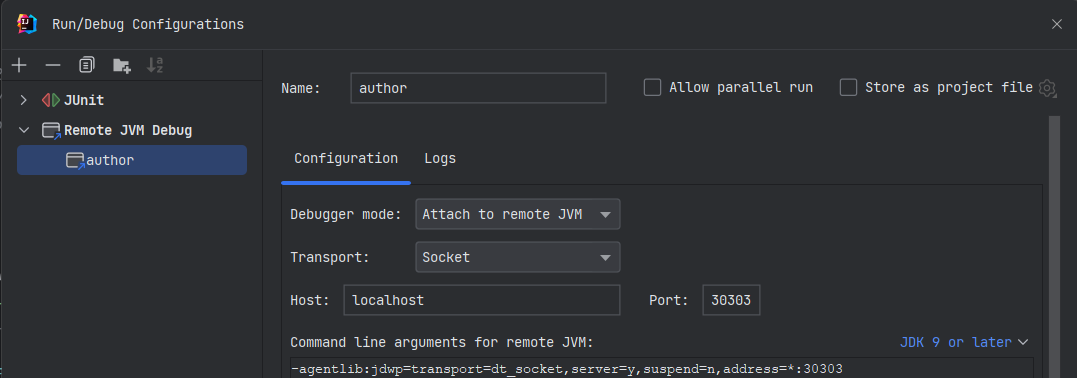
Configuring Debug Ports for Local Development
To be able to attach a Java debugger locally, the startup scripts need to be extended by a couple of arguments.
In each (author, publish) start script, find the following line
if not defined CQ_JVM_OPTS set CQ_JVM_OPTS=[...] and add the following arguments:
CQ_JVM_OPTS='-server -Xmx8024m -Djava.awt.headless=true -Xdebug -Xrunjdwp:transport=dt_socket,server=y,address=30303,suspend=n'
.
Note, that the address=30303 needs to be different for author and publish.
A debug run config in IntelliJ IDEA looks like this:
Bootstrapping a development environment via Maven Archetype
The Apache Maven Archetype describes Archetypes like this
[...] provide a system that provides a consistent means of generating Maven projects. Archetype will help authors create Maven project templates for users, and provide users with the means to generate parameterized versions of those project templates.
To summarize, by using an archetype, which itself has been created by the AEM Developer Team, we can set specific variables with which the archetype bootstraps itself and creates a customized set of files and directories — ready to use.
The following example demonstrates a bash command using v27 of the aem-project-archetype.
By setting appTitle, appId, and groupId we tell the archetype how to name and structure the project.
frontendModule can be one of none, general, react, or angular.
By specifying this parameter, we can opt in to use the ui.frontend module, which can be preconfigured with either
a classic HTML variant or a modern SPA framework (React or Angular).
If we do not specify aemVersion, the latest AEM Cloud SDK is used. A specific version can be set via passing the AEM
version in its major.minor.patch notation. For example aemVersion="6.4.8" creates a project based on AEM 6.4 with
patch level 8 and adds all necessary dependencies to the pom.xml.
mvn -B archetype:generate \
 -D archetypeGroupId=com.adobe.aem \
 -D archetypeArtifactId=aem-project-archetype \
 -D archetypeVersion=27 \
 -D appTitle="My Site" \
 -D appId="mysite" \
 -D groupId="com.mysite" \
 -D frontendModule=react \
 -D includeExamples=y
Common archetype options (quick reference)
appTitle: Display name, e.g. "My Site"appId: Project folder and package prefix, e.g. "mysite"groupId: Maven group id, e.g. "com.mysite"frontendModule:none | general | react | angularincludeExamples:yto include example components and contentaemVersion:6.5.0style version (for non-cloud)
The Archetype provides a wide range of optional properties, with sensible defaults set for each. For a list of all available settings, please check the official documentation on GitHub.
Executing the above command will create the following folder structure:
Using AEM as a Cloud Service SDK version: 2021.3.5087.20210322T071003Z-210325
Creating content skeleton...
[INFO] Project created from Archetype in dir: /Users/nerlich/Downloads/temp/mysite
[INFO] ------------------------------------------------------------------------
[INFO] BUILD SUCCESS
[INFO] ------------------------------------------------------------------------
[INFO] Total time:  10.865 s
[INFO] Finished at: 2021-03-27T20:54:40+01:00
[INFO] ------------------------------------------------------------------------
cd mysite
-rw-r--r--   1 nerlich  staff  1.2K .gitignore
-rw-r--r--   1 nerlich  staff   11K LICENSE
-rw-r--r--   1 nerlich  staff  5.2K README.md
drwxr-xr-x   4 nerlich  staff  128B all/
drwxr-xr-x   3 nerlich  staff   96B analyse/
-rw-r--r--   1 nerlich  staff  494B archetype.properties
drwxr-xr-x   4 nerlich  staff  128B core/
drwxr-xr-x   6 nerlich  staff  192B dispatcher/
drwxr-xr-x   4 nerlich  staff  128B it.tests/
-rw-r--r--   1 nerlich  staff   28K pom.xml
drwxr-xr-x   5 nerlich  staff  160B ui.apps/
drwxr-xr-x   4 nerlich  staff  128B ui.apps.structure/
drwxr-xr-x   4 nerlich  staff  128B ui.config/
drwxr-xr-x   4 nerlich  staff  128B ui.content/
drwxr-xr-x  12 nerlich  staff  384B ui.frontend/
drwxr-xr-x  11 nerlich  staff  352B ui.tests/
Building and deploying the complete development environment can be done via the following
command mvn clean install -PautoInstallSinglePackage - executed in the root directory.
ui.apps, ui.config, and ui.content can be individually built with the profile -PautoInstallPackage. Deploying
just the Java module core can be achieved with the profile -PautoInstallBundle.
I usually just run
mvn clean install -PautoInstallPackagein my project's root. The deployment is quick enough and I can be sure that I did not forget anything.
Common Maven commands (copy/paste)
# Full build and deploy all packages
mvn clean install -PautoInstallSinglePackage

# Build and install only ui.apps/ui.config/ui.content packages
mvn clean install -PautoInstallPackage

# Deploy only the OSGi bundle
mvn clean install -PautoInstallBundle

# Run tests only
mvn test
IntelliVault (JetBrains content sync)
For JetBrains IDEs (IntelliJ, WebStorm), the IntelliVault
plugin provides two-way content sync between your local filesystem and the JCR. It requires
a version of the FileVault tool vault-cli to be installed.
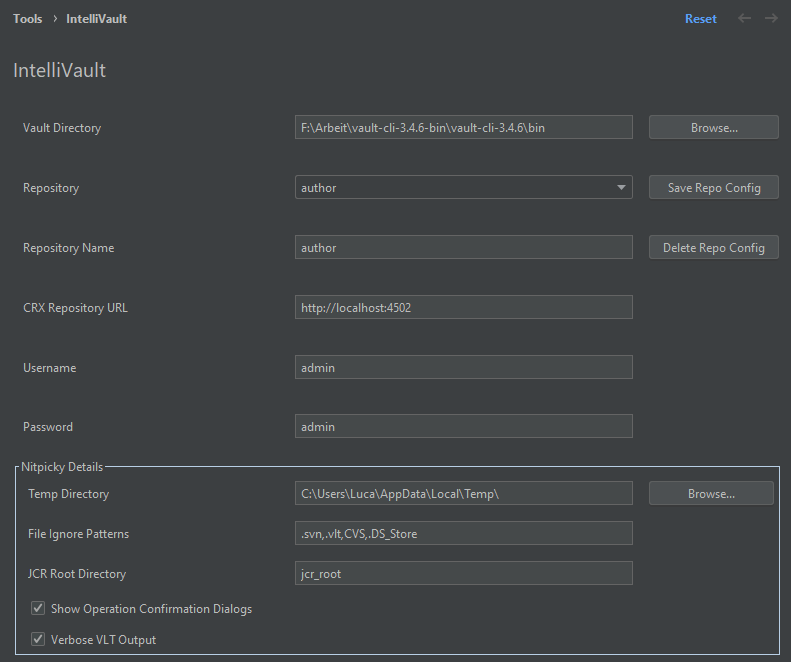
IntelliVault commands are invoked by right-clicking any path below a jcr_root node:
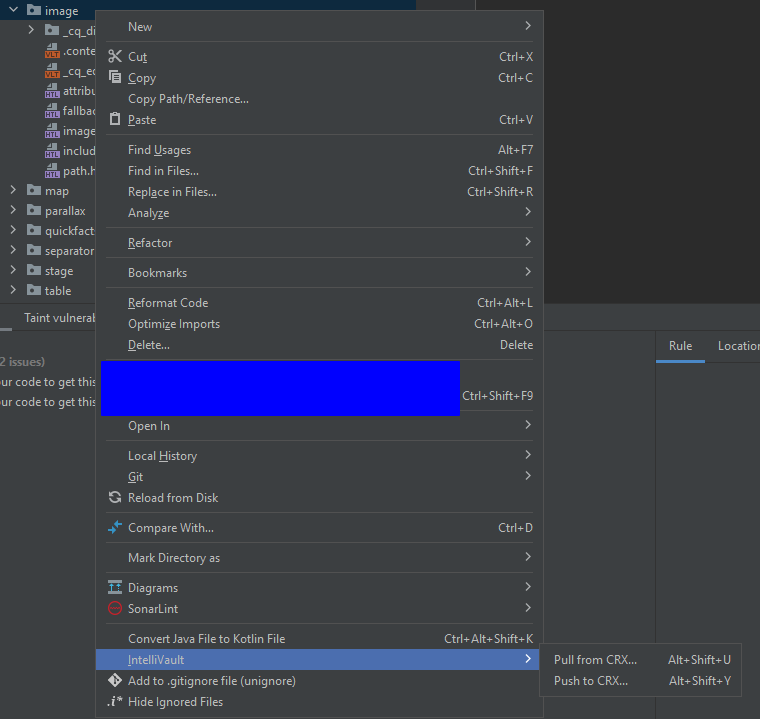
- Pull from CRX -- copies content from the JCR to your local filesystem (overwrites local files)
- Push to CRX -- imports your local filesystem content into the JCR (overwrites JCR content)
Both operations are destructive. Always commit or stash local changes before pulling, and verify your changes before pushing to a shared instance.
The plugin is not always kept up to date and may not be available for the latest IDE versions. If it doesn't work with your IDE, use the AEM Repo Tool below or a full Maven build instead.
AEM Repo Tool (content sync)
The AEM Repo Tool (repo) is a fast way to push or pull content packages without a full Maven build.
It is especially useful for front-end asset changes or small content updates.
# Install the repo tool (macOS via brew)
brew install aem/repo/repo

# Check that it is available
repo --version
Example usage:
# Push a local content package (zip)
repo put -u admin -p admin http://localhost:4502 crx-package.zip

# Push a file or folder directly into JCR (useful for ui.apps changes)
repo put -u admin -p admin http://localhost:4502 /path/to/ui.apps/src/main/content/jcr_root/apps/mysite

# Pull from AEM into your local filesystem
repo get -u admin -p admin http://localhost:4502 /content/mysite/en
Troubleshooting quick hits
- If AEM hangs on startup, check
crx-quickstart/logs/error.log - If login fails, verify the jar was started with
-guiat least once - If port 4502 is busy, rename the jar to another port, e.g.
cq-author-p5502.jar - If bundles remain in "Installed" state, clear the OSGi cache by deleting
crx-quickstart/launchpad/felixand restart
SonarQube Setup - Automatic Rule Evaluation
- Use official SonarQube DockerCompose
yml DockerCompose Sonar + Postgres
- save locally
- update Postgres version to
v14 - on M1 (Apple Silicon) Mac add the following line
platform: linux/amd64tosonarqube:SONAR_SEARCH_JAVAADDITIONALOPTS: "-Dbootstrap.system_call_filter=false"toenvironment:- In your docker settings increase the available disc size to at least 100GB
- (On Windows) Increase available ram via powershell
- cd to
C:\Users\<username> - Create a new file
.wslconfig - Add the following two lines
-
- run
wsl --shutdown - reboot your machine
- https://stackoverflow.com/a/69294687/4034811
- cd to
- Navigate to the above yml file in your local file system
docker-compose up(Add-dto run this in the background)
- Navigate to
http://localhost:9000 - Login with the default SonarQube Credentials
admin/admin- Update the password when prompted by the app
- Go to
http://localhost:9000/admin/marketplaceand install the following Plugins- AEM Rules for SonarQube by "Wunderman Thompson Technology"
- IBM iX AEM Sonar rules by "IBM iX"
- For third-party plugins, place the .jar in your volume target of
sonarqube/extensions/plugins- Default on Mac Docker Hub is
/opt/sonarqube/extensions/plugins - On Windows, browse to
\\wsl$\docker-desktop-data\data\docker\volumesvia explorer- one folder for each volume exists
- Default on Mac Docker Hub is
- restart SonarQube
- Go to 'Projects' -> Manually -> Analyse locally
- Choose a token name
- Generate a token
- Save this token securely
- Update your local maven settings according to the documentation http://localhost:9000/documentation/analysis/scan/sonarscanner-for-maven
- Analyse your local project
- Navigate to your projects root pom.xml file
- Execute the sonar
command
mvn clean verify sonar:sonar -Dsonar.projectKey=<your-project-name> -Dsonar.host.url=http://localhost:9000 -Dsonar.login=<your-token> - Replace
<your-project-name>and<your-token>with your own values generated in step 7.
Add JaCoCo Unit Test Coverage
- Navigate to your projects root
/pom.xmlfile -
Add the following line to the
<properties>section<sonar.coverage.jacoco.xmlReportPaths>${project.basedir}/target/site/jacoco/jacoco.xml</sonar.coverage.jacoco.xmlReportPaths><sonar.coverage.exclusions>ui.apps/**/*,ui.tests/**/*,it.tests/**/*</sonar.coverage.exclusions>- to exclude specific paths from the (coverage) analysis
- Add the Jacoco Plugin
<plugin>
     <groupId>org.jacoco</groupId>
     <artifactId>jacoco-maven-plugin</artifactId>
     <version>0.8.8</version>
     <executions>
         <execution>
         <id>prepare-and-report</id>
         <goals>
         <goal>prepare-agent</goal>
         <goal>report</goal>
         </goals>
         </execution>
         <execution>
         <id>report-aggregate</id>
         <phase>verify</phase>
         <goals>
         <goal>report-aggregate</goal>
         </goals>
         <configuration>
             <outputDirectory>${project.basedir}/../target/site/jacoco-aggregate</outputDirectory>
             <excludes>
                 <exclude>ui.apps/**/*</exclude>
                 <exclude>ui.tests/**/*</exclude>
                 <exclude>it.tests/**/*</exclude>
             </excludes>
         </configuration>
         </execution>
     </executions>
</plugin> - Add the Sonar Maven Plugin
<plugin>
 <groupId>org.sonarsource.scanner.maven</groupId>
 <artifactId>sonar-maven-plugin</artifactId>
 <version>3.8.0.2131</version>
 <executions>
     <execution>
         <phase>verify</phase>
         <goals>
             <goal>sonar</goal>
         </goals>
     </execution>
 </executions>
</plugin> - If a module complains during a regular build due to missing credentials, add the following snippet to its pom. file
e.g.
/ui.tests/pom.xml<plugin>
<groupId>org.sonarsource.scanner.maven</groupId>
<artifactId>sonar-maven-plugin</artifactId>
<executions>
<execution>
<phase>none</phase>
</execution>
</executions>
</plugin>
Connect Intellij IDEA SonarLint Plugin
- Install the SonarLint Plugin from the IDEA Marketplace
- Go to Settings -> Tools -> SonarLint
- Click on the "+" icon and add your local SonarQube Instance (e.g. http://localhost:9000)
- Go to
http://localhost:9000/account/security- Generate a "user token"
- Save this securely
- In your IDEs Sonar Lint Settings add the token from step 4
- Click apply and "Update binding" afterwards
Set up a local Dispatcher with Docker
Just follow the steps described here: local-development-environment-set-up/dispatcher-tools.
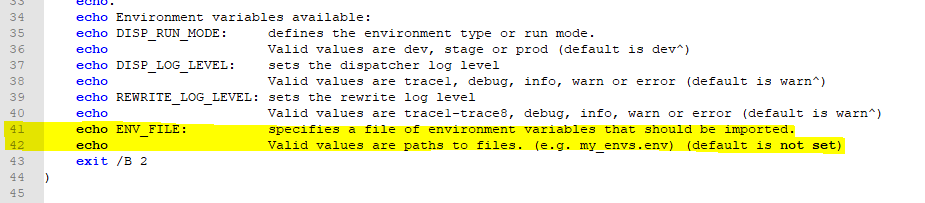
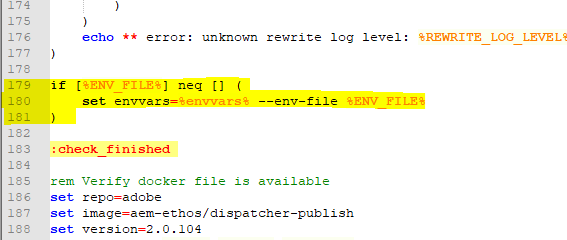
On Windows, the docker_run.cmd file will need to be slightly modified. Remove the following lines:
- Line: 41 + 41
- Line 179 - 181
Thanks for reading!
luca
See also
- Architecture
- Dispatcher configuration
- Deployment guide
- AEM as a Cloud Service
- OSGi configuration
- Performance
- Groovy Console
- Testing strategies
Links & Downloads
- AEM Software Distribution
- The official Adobe Experience Cloud Download Hub
- Official AEM Archetype GitHub Page
- AEM Core Components
- AEM ACS Commons